Key Takeaways
- WordPress maintenance is a rhythm, not a project. Five minutes daily, twenty minutes weekly, ninety minutes monthly, and half a day quarterly will keep almost any small business site healthy.
- Updates are the whole job. Of the 11,334 new WordPress vulnerabilities found in 2025, a 42% jump from the year before, 91% were in plugins and 9% in themes, with just six in core (Patchstack).
- Speed matters more than you think. The median time from a vulnerability going public to mass exploitation is five hours, and roughly half are attacked within 24 hours. A monthly update cycle is not fast enough for security releases.
- Do not count on your host to catch it. Traditional defenses blocked only 12% of WordPress-specific attacks in Patchstack’s testing, rising to 26% in broader tests.
- Prune, do not just update. 56.3% of plugins in the WordPress directory have not been updated in two or more years. An abandoned plugin never gets a patch, so removing it is the only fix.
- Add an AI visibility check to your monthly routine. Confirm your robots.txt is not blocking GPTBot, ClaudeBot, or PerplexityBot, because a rule added years ago can quietly cost you every AI citation.
- Downtime is the real cost. ITIC puts outages at roughly $1,670 per minute for businesses under 25 employees (Dotcom-Monitor). Two hours down cost more than a year of maintenance.
Most WordPress sites do not break suddenly. They drift. A plugin goes a year without an update, PHP falls two versions behind, the backup plugin quietly stopped running in March, and then one ordinary Tuesday afternoon an update lands on top of all of it and the site goes white. The crash feels like bad luck. It was a calendar problem.
The good news is that the work to prevent this is genuinely small and genuinely boring. It is not a skill problem; it is a consistency problem. Fifteen minutes a week beats one panicked weekend a year, and almost every site we see fail was failing slowly for months before anyone noticed.
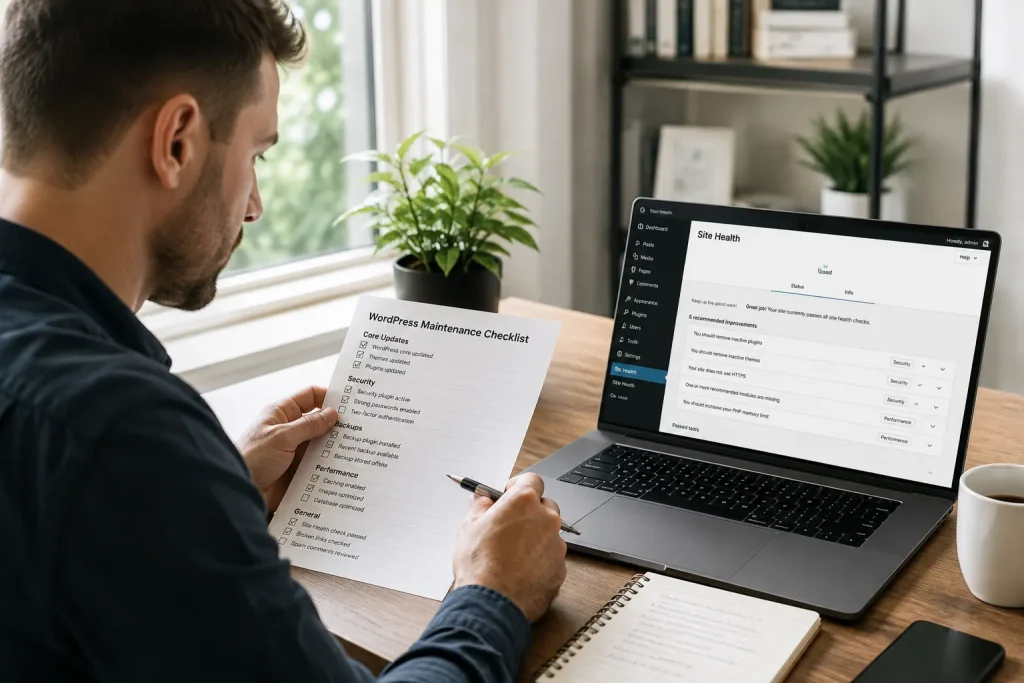
WordPress maintenance is the recurring set of checks that keeps a site secure, fast, and online: applying updates, verifying backups, monitoring uptime, and pruning code you no longer use. This checklist splits that work into daily, weekly, monthly, quarterly, and annual tasks, with honest time estimates for each. Work through it as written and you will spend under two hours in a typical month. It is written for the person who owns the site rather than the person who codes it.
Why WordPress Maintenance Is Not Optional in 2026
Because the gap between a vulnerability going public and your site getting attacked is now measured in hours, not weeks.
WordPress powers 40.8% of all websites and 59.0% of every site built on a known content management system. That reach is why the platform has such a deep plugin ecosystem, and it is also why automated attacks scan for known holes around the clock.
The 2025 numbers, published by Patchstack in its 2026 report, set the scale. 11,334 new vulnerabilities were disclosed across the WordPress ecosystem, up 42% on 2024’s 7,966 and the highest annual total recorded. High-severity issues rose 113% year on year, with 1,966 of the total rated high severity (Patchstack, 2026).
New WordPress Vulnerabilities Disclosed
| Year | New vulnerabilities disclosed |
| 2024 | 7,966 |
| 2025 | 11,334 (+42%) |
Note where the risk actually lives. 91% of those vulnerabilities were in plugins and 9% in themes. WordPress core accounted for six, all low priority. Core is not your exposure. The 27 plugins you installed over five years are.
The timing is the part that changes how you should schedule updates. Patchstack measured the gap between public disclosure and first observed mass exploitation and found a median of five hours. Around half of high-impact vulnerabilities are under attack within 24 hours.
How Fast a Public Vulnerability Gets Attacked
| Time since public disclosure | Share of heavily exploited flaws under attack |
| Within 6 hours | ~20% |
| Within 24 hours | ~50% |
| Within 7 days | 70% |
Two conclusions follow, and they shape the whole schedule below. First, security releases cannot wait for your monthly window. They get applied the week they land, and critical ones the day they land. Feature updates can wait. Second, do not assume someone else has you covered. In Patchstack’s testing, traditional defenses blocked just 12% of WordPress-specific vulnerability attacks and only 26% under broader testing.
The cost of getting this wrong is not abstract. ITIC’s benchmarking puts downtime at roughly $1,670 per minute, about $100,000 per hour, for businesses under 25 employees. Even if your own number is a fraction of that, two hours offline almost certainly costs more than a full year of maintenance.
The WordPress Maintenance Schedule at a Glance
Here is the whole routine on one page. Each task is explained in the sections below.
| Frequency | Time | Tasks |
| Daily | 5 minutes | Uptime alert check, security scan alerts, backup confirmation, comment moderation |
| Weekly | 15 to 30 minutes | Apply security updates, test the site front end, check forms and checkout, review new user accounts |
| Monthly | 60 to 90 minutes | Full update cycle on staging, restore test, broken link scan, speed check, Search Console review, AI visibility check, database cleanup |
| Quarterly | 3 to 4 hours | Plugin audit and pruning, PHP and hosting review, full security review, content and SEO review, user access audit |
| Annually | Half a day | License and renewal review, full site audit, design and content refresh, disaster recovery drill |
A note on ordering. If you only ever do one tier, do the weekly one. Applying security updates promptly and confirming the site still loads covers the majority of what actually takes sites down.
Daily WordPress Maintenance Tasks (5 Minutes)
Daily work should be alerts, not activity. If you are logging in every day to check things manually, the monitoring is not set up properly.
- Read your uptime alerts. Use a monitor with a one-minute check interval so you learn about an outage before your customers do. If there was no alert, there is nothing to do.
- Read your security scan alerts. A scanner should email you on malware detection, file changes, or repeated failed logins. Same rule: no alert, no action.
- Confirm last night’s backup ran. Most backup plugins send a success or failure email. The failure emails are the ones that matter, and the most common cause is a full disk on the host.
- Clear the comment queue if your site takes comments. Spam that sits in moderation for weeks tends to get approved by accident.
If you run a store, add one more: check that yesterday’s orders processed and payment notifications arrived. A broken payment gateway can look completely normal from the front end.
Weekly WordPress Maintenance Tasks (15 to 30 Minutes)
This is the tier that prevents most incidents.
1. Apply security updates. Check the Updates screen for anything flagged as a security release and apply it promptly. Given the five-hour median to exploitation, a critical security patch should go on the same day, not wait for the monthly cycle. Take a backup first, always.
2. Load the site as a visitor. Open the homepage, two or three key pages, and one blog post in a private browser window. Look at it on a phone too. You are checking that nothing has visibly broken since last week, which takes about ninety seconds.
3. Submit a test through every form. Contact forms fail silently and often, usually after a plugin update changes how mail is sent. Send one real test and confirm it arrives in the inbox it should. If you sell online, put one item through checkout.
4. Review new user accounts. Look at Users and confirm you recognize every account, especially anything with Administrator or Editor access. Unexpected admin accounts are one of the clearest signs of a compromise. Our WordPress user roles guide explains what each level can actually do.
5. Skim the security log for repeated failed logins from one address. A sustained pattern means somebody is working through passwords, and our guide to blocking brute force attacks covers the response.
Monthly WordPress Maintenance Tasks (60 to 90 Minutes)
The monthly session is where you do the work that needs a bit of care and a staging site.
Run the full update cycle on staging first
Do not run feature updates directly on the live site. Copy to staging, update everything there, click through the site, then push the change live. Our staging environment guide covers the setup, and most decent hosts include one-click staging now.
The order that causes the fewest surprises:
- Take a full backup and confirm it completed.
- Update WordPress core first.
- Update plugins next, one at a time if you have had trouble before, checking the site between each.
- Update themes last. Our safe theme update checklist covers this properly, including why customizations belong in a child theme.
- Click through your key pages, forms, and checkout on staging.
- Push to live, then re-check the live site.
WordPress 7.0 arrived on 20 May 2026 and the branch has moved quickly since, with 7.0.4 released on 12 August 2026. Point releases like these are largely security and bug fixes, which is exactly the category you should not sit on.
If an update does take the site down, do not panic and do not start editing files. Our guides to the WordPress critical error, the white screen of death, and PHP fatal errors walk through recovery in order, and a current backup turns the whole thing into a five-minute rollback.
Test a restore, not just a backup
Once a month, actually restore your most recent backup to a staging site and confirm the result is a working copy of your site. A backup nobody has restored is a guess. This is the single most skipped task on this list and the one that hurts most when it turns out to have been failing since March. Our backup guide covers the 3-2-1 approach and how to test properly.
Scan for broken links and 404s
Run a crawl or check the Pages report in Search Console for 404 errors. Links rot, external sites move, and a page full of dead links reads as neglected to both readers and search engines. Fix the internal ones, replace or remove the external ones.
Check speed on your key templates
Run PageSpeed Insights on your homepage, a service page, and a blog post. You are watching for drift rather than chasing a perfect score. If Largest Contentful Paint or Interaction to Next Paint has moved noticeably since last month, something you installed or uploaded is the likely cause. Our performance audit checklist covers what to do about it.
Review Search Console
Look at four things: total clicks versus last month, any new coverage errors, any manual actions, and your Core Web Vitals status. Five minutes here catches indexing problems months before they show up in revenue.
Clean the database
Post-revisions, spam comments, expired transients, and orphaned metadata build up quietly. A cleanup plugin handles this in a couple of clicks. Back up first, because database cleanup is one of the few maintenance tasks that can genuinely lose data if a tool is careless.
A monthly WordPress maintenance routine should include running the full update cycle on a staging site before pushing live, restoring a backup to verify it works, scanning for broken links and 404 errors, checking PageSpeed on key templates, reviewing Search Console for coverage errors and Core Web Vitals, and cleaning post revisions and transients from the database. Budget 60 to 90 minutes per month for a typical small business site.
Add This to Your Monthly Routine for AI Search
Check that AI crawlers can reach you, and check whether they still cite you. This is the newest item on the list and almost nobody has it on their checklist yet.
People increasingly ask ChatGPT, Claude, and Gemini the questions they used to type into Google. ChatGPT alone reached roughly 900 million weekly active users in early 2026, more than double the 400 million a year earlier. On Google itself, Pew Research found users clicked a traditional result 8% of the time when an AI Overview appeared, against 15% when one did not. Being the source inside the answer now matters as much as ranking under it.
Three things belong in the monthly session:
1. Read your robots.txt. Confirm you are not blocking GPTBot, ClaudeBot, PerplexityBot, OAI-SearchBot, or Google-Extended unless you have decided to. Plenty of sites added a blanket AI-crawler block in 2023 and 2024, forgot about it, and are now invisible to the tools their customers use. Check it, then make the call deliberately.
2. Ask the assistants your own questions. Once a month, put three or four questions a customer would ask into ChatGPT and Perplexity and see whether your site is cited. It takes ten minutes and it is currently the only trustworthy way to measure this, since no dashboard reports it yet.
3. Confirm you are indexed in Bing. ChatGPT Search retrieves live results from Bing’s index. A site that looks healthy in Google Search Console and has never been verified in Bing Webmaster Tools is missing the largest AI referral source there is.
[Our Insight] On llms.txt, the honest answer is do not rush. It is still a community proposal rather than an adopted standard; adoption sits around 10% of domains, and studies of crawler behavior find that GPTBot, ClaudeBot, and PerplexityBot overwhelmingly ignore the file and crawl your HTML directly. Adding one costs ten minutes and does no harm, but it is a developer-experience nicety in 2026, not a ranking lever. Your crawler access rules and your actual page content are doing the real work, which is why the robots.txt check earns a place on this list and llms.txt does not.
Quarterly WordPress Maintenance Tasks (3 to 4 Hours)
Quarterly work is where you remove things rather than update them.
Audit and prune your plugins
This is the highest-value quarterly task. Go through every installed plugin and ask three questions: do we still use it, is it still maintained, and could something else already installed do the same job?
The maintenance question matters more than most owners realize. An analysis of 63,418 plugins in the WordPress directory found 56.3% had not been updated in two or more years, and 22.5% had not been touched in a decade. An abandoned plugin will never receive a patch, so if a vulnerability is found in it, updating is not an option. Removing it is the only fix.
Check each plugin’s WordPress.org page for the last updated date and tested-up-to version. Anything untouched for over a year needs a replacement plan. Our post on the essential WordPress plugins is a reasonable baseline for what most sites actually need, which is fewer than they have.
Deactivating is not removing. Deactivated plugin files still sit on your server and can still be exploited. Delete what you are not using.
Review PHP and hosting
Check which PHP version your site runs under Tools > Site Health. WordPress 7.0 supports PHP 7.4 as a minimum but the recommended version is PHP 8.3 or newer (WordPress Core, 2026), with 6.9 and 7.0 fully supporting PHP 8.5. Older PHP is slower and stops receiving security fixes, so if you are below 8.3, plan the upgrade. Test on staging first, since very old plugins occasionally break on newer PHP.
While you are there, look at whether your hosting still fits. Traffic grows, and a plan that was right two years ago may now be the reason your pages are slow.
Run a full security review
Confirm your SSL certificate is valid and renewing, that two-factor authentication is on for every administrator, that file editing is disabled in the dashboard, and that your firewall rules are current. Our security best practices checklist covers the full pass, and the SSL implementation guide covers certificate setup if yours is due.
Audit user access
Remove accounts for people who have left. Downgrade anyone holding Administrator who only needs Editor. Old contractor accounts with full access are a standing risk and cost nothing to close.
Review content and SEO
Pull your top 20 pages from Search Console and look for posts that have slipped. Update the ones with stale data or dead references. This is also where you notice two pages competing for the same search, which is worth fixing before it costs you both.
Annual WordPress Maintenance Tasks (Half a Day)
- Review every license and renewal. Premium plugins, theme licenses, hosting, domain, SSL, and email. Cancel what you no longer use, and confirm nothing critical is set to expire silently.
- Renew your domain early, or set it to auto-renew with a card that is not about to expire. An expired domain takes the site down completely and can be genuinely difficult to recover.
- Run a full site audit. Speed, security, SEO, accessibility, and mobile, end to end.
- Do a disaster recovery drill. Restore a full backup to a fresh environment and time it. If you cannot rebuild the site within a couple of hours, fix that now rather than during an incident.
- Refresh design and content. Look at the site as a first-time visitor. Outdated pricing, last year’s team photos, and dead service pages all quietly cost trust.
What WordPress Maintenance Costs
You have three options, and the right one depends on whose time is cheaper.
| Approach | Typical cost | Best for | The trade-off |
| Do it yourself | $0 plus 2 to 4 hours a month | Simple sites, owners comfortable in the dashboard | Free until the month you skip it |
| Plugin-assisted DIY | $50 to $200 a year in tools | Owners who want alerts and automatic backups | Tools notify you, they do not decide for you |
| Managed maintenance plan | $99 to $499 a month | Stores, lead-generating sites, anyone whose site is a revenue channel | Costs money every month, including quiet ones |
The honest way to decide is to price an outage. If your site being down for two hours would cost you more than a year of a maintenance plan, paying for one is arithmetic rather than luxury. If your site is a five-page brochure that generates a call a month, the DIY column is a perfectly sensible answer and this checklist is all you need.
Maintenance Mistakes We See Most in Clients’ Audits
When we audit a site that has been left alone, the same four patterns come up almost every time. In our experience, these are rarely technical failures; they are scheduling ones.
Automatic updates on, nothing else. Auto-updates are genuinely good and they cover the most common risk. But they update plugins without checking whether your site still works afterwards, so a conflict can sit there breaking a contact form for weeks with nobody watching. Auto-updates are a safety net, not the routine.
Backups running, restores never tested. We regularly find backup plugins that have been failing for months, sending failure emails to an address nobody reads. Everyone assumes they have backups. Far fewer have restorable ones.
Plugins that were deactivated instead of deleted. Twelve deactivated plugins on the server, each one still a file an attacker can reach. Deactivating solves a conflict; it does not reduce the attack surface.
Nobody owns the calendar. This is the actual root cause behind the other three. Maintenance does not get skipped because it is hard, it gets skipped because it is nobody’s specific job. Put it on one person’s calendar with a fixed day, or hand it to someone who does it for a living.
If you would rather not own that calendar, our WordPress maintenance service covers the updates, backups, monitoring, and testing on a fixed schedule. If you would like to know what state your site is in first, a site audit will tell you exactly what has been drifting.
Frequently Asked Questions
How often should I update WordPress plugins?
Apply security releases within days, and critical ones the same day, because the median time from public disclosure to mass exploitation is five hours. Feature and general updates can wait for a monthly cycle run on staging. Always take a backup before any update.
How long does WordPress maintenance take each month?
For a typical small business site, budget about five minutes a day on alerts, 15 to 30 minutes weekly, and 60 to 90 minutes for the monthly session. That comes to roughly two to three hours a month, plus three to four hours once a quarter for the deeper audit.
Can I just turn on automatic updates and forget about it?
Automatic updates handle the most common security risk and are worth enabling for minor core releases. They do not verify that your site still works afterwards, they do not remove abandoned plugins, and they do not test your backups. Treat them as a safety net underneath the routine rather than a replacement for it.
What happens if I never maintain my WordPress site?
The usual sequence is slow, then broken. Plugins fall behind, PHP goes out of support, page speed drifts, and eventually a vulnerability in an unpatched plugin is exploited or an update lands on an outdated stack and takes the site down. In 2025, 91% of the 11,334 new WordPress vulnerabilities were in plugins, which is precisely the code that routine maintenance keeps current.
Does maintenance actually help SEO?
Indirectly but meaningfully. Google’s ranking systems reward sites that load quickly, stay available, and stay free of errors, and its 2026 core updates have continued to assess quality across a whole site rather than page by page. Broken links, 404 errors, slow templates, and downtime all work against you, and every one of them is a maintenance task rather than an SEO tactic.
How do I know if my WordPress site needs maintenance right now?
Open Tools > Site Health in your dashboard. Then check three things: when your last successful backup ran, how many plugins are showing available updates, and which PHP version you are on. If the backup is older than a week, updates are stacked up, or PHP is below 8.3, your site is overdue.
Keep the Rhythm, Skip the Crisis
WordPress maintenance rewards consistency far more than expertise. The sites that fail are rarely the ones with a complicated setup. They are the ones where nobody looked for eight months, updates stacked up, and an ordinary Tuesday turned into an outage.
If you would rather it simply happened, our WordPress maintenance service runs this schedule on your site every month, with staging-tested updates, verified backups, and monitoring. If you want to know where your site stands before committing to anything, book a site audit and we will show you exactly what is out of date and what it puts at risk.