
WordPress PHP fatal error stops your site cold, but it also hands you a clue most people ignore: the exact file and line number that broke. Once you know how to read that line and how to make WordPress write it down for you, fixing the error is usually a matter of switching off one plugin or undoing one edit. You do not need to be a developer, and you do not need to touch code you do not understand.
This guide shows you how to make the error visible with the debug log, how to read what it says, and how to match it to a fix. The goal is simple: turn a scary blank page into a named culprit you can deactivate in two minutes.
If your site shows the generic “There has been a critical error on this website” message, that is the front face of a fatal error, and our guide to the WordPress critical error is a good companion to this one.
Key Takeaways
- A PHP fatal error always names the file and line that failed, and the folder in that path usually names the plugin or theme at fault.
- Turn on the debug log with three lines in wp-config.php. WordPress then records every error to wp-content/debug.log.
- Since WordPress 5.2, a fatal error emails the admin a Recovery Mode login link so you can reach the dashboard even when the front end is down.
- Most fatal errors trace to a plugin or theme conflict, a broken functions.php edit, or old code that a newer PHP version no longer tolerates.
- PHP 8.0 turned many former warnings into hard errors, which is why code that ran for years can fail the day your host upgrades PHP.
What Is a WordPress PHP Fatal Error?
A PHP fatal error is a problem serious enough that PHP stops running the script instead of continuing. Because WordPress is built in PHP, a fatal error in any plugin, theme, or core file halts the page and shows a critical-error notice or a blank screen. Unlike a warning, which PHP notes and moves past, a fatal error ends execution then and there.
The good news is that PHP is loud about what happened. Every fatal error produces a message with four parts: the type of error, a description, the file it happened in, and the line number. That message is your map. The trick is that WordPress hides it from visitors by default, so your first job is to make it visible.
One reason these errors feel more common lately is a change under the hood. PHP 8.0, released in November 2020, converted a range of conditions that used to be quiet warnings into thrown errors that stop the page. Older plugin and theme code that appeared to work on PHP 7 can hard-fail once a site moves to PHP 8 or later. So an error can surface without you changing anything, simply because your host updated PHP.
Step 1: Turn On the Debug Log to See the Error
Before you can fix a fatal error, you have to read it, and the debug log is how you capture it safely. WordPress has a built-in logger controlled by three constants you add to wp-config.php. It records every error to a file without showing anything to your visitors.
Open wp-config.php in your site root and add these lines above the line that reads /* That’s all, stop editing! Happy blogging. */:
define( 'WP_DEBUG', true );
define( 'WP_DEBUG_LOG', true );
define( 'WP_DEBUG_DISPLAY', false );
Here is what each one does:
- `WP_DEBUG` switches debug mode on. It is set to false by default.
- `WP_DEBUG_LOG` writes every error to a log file at wp-content/debug.log. You can also give it a full file path to save the log elsewhere.
- `WP_DEBUG_DISPLAY` set to false keeps the errors out of your public pages while still logging them, which is what you want on a live site.
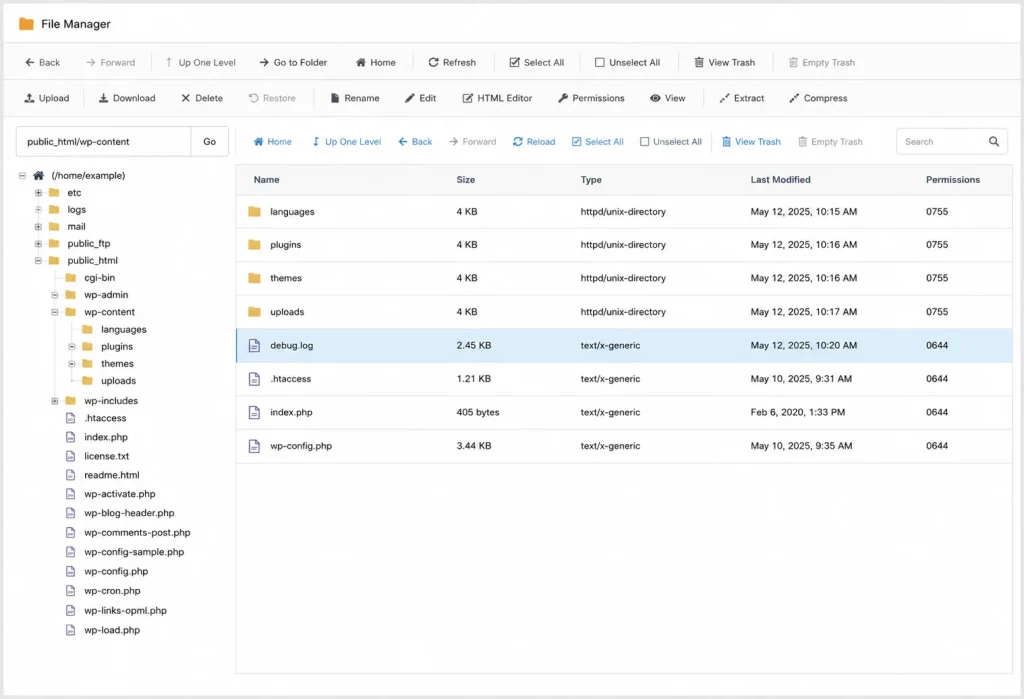
Now reload the page that was failing, then open wp-content/debug.log over FTP or your host file manager. The most recent lines at the bottom are your error. Copy them somewhere safe.
Step 2: Read the Error Line
A fatal error looks intimidating, but you only need three pieces of it. Take a typical example from a debug log:
PHP Fatal error: Uncaught Error: Call to undefined function acme_helper()
in /public_html/wp-content/plugins/acme-forms/acme.php on line 42
Read it like this:
- The description (“Call to undefined function acme_helper()”) tells you what went wrong. Here, some code tried to use a function that does not exist right now.
- The path (“/wp-content/plugins/acme-forms/”) names the culprit. The folder right after plugins/ or themes/ is the plugin or theme responsible. In this case, it is a plugin called acme-forms.
- The line number (“on line 42”) is the exact spot, useful if you hand it to your host’s support or a developer.
That middle piece is the one that saves you. You do not need to understand the code. You just need the folder name, because that is the plugin or theme you are going to deactivate or roll back.
[Our Suggestion] Ignore the scary words and hunt for the path. Owners freeze at “Uncaught Error” and “TypeError” and assume they need a programmer. The truth is that 90% of a self-service fix is reading the folder name after /plugins/ or /themes/. The description tells a developer what to change. The path tells you what to turn off, and turning it off is usually enough to bring the site back.
Common WordPress PHP Fatal Errors and How to Fix Them
Most fatal errors fall into a handful of types, and each maps to a straightforward fix. Find your error message in the table, then follow the fix. The plugin or theme named in the error path is what you act on.
| Error message starts with | What it means | Fix without a developer |
| Uncaught Error: Call to undefined function… | Code called a function that is not available, often because a required plugin was deactivated or half-updated. | Deactivate the plugin named in the path. If it depends on another plugin, reactivate that one first. |
| Uncaught Error: Class “…” not found | A needed file or plugin dependency did not load, usually after a partial or interrupted update. | Reinstall or roll back the plugin named in the path. Confirm all its files uploaded. |
| Parse error: syntax error, unexpected… | Broken PHP code, most often from pasting a snippet into your theme’s functions.php. | Undo your last edit to functions.php via FTP, or restore the file from a backup. |
| Allowed memory size of N bytes exhausted | A script needed more memory than the limit allows, common for imports or heavy plugins. | Raise the PHP memory limit in wp-config.php, or deactivate the memory-hungry plugin. |
| Maximum execution time of N seconds exceeded | A script ran too long, often due to a slow import, backup, or external API call. | Retry the task, run it in smaller batches, or ask your host to raise max_execution_time. |
| Cannot redeclare function… | The same function name is defined twice, usually two plugins clashing or a snippet pasted twice. | Deactivate one of the two conflicting plugins, or remove the duplicated snippet. |
For the memory and execution-time rows, the default PHP time limit is 30 seconds, so a task that overruns it is doing genuinely heavy work that is better run in smaller pieces.
Step 3: Deactivate or Undo the Culprit
Once the error names a component, switching it off is the fix. How you do that depends on whether you can still reach your dashboard.
If you can log in, or you received a Recovery Mode email, go to Plugins, deactivate the one named in the error, and reload your site. WordPress 5.2 and later sends the admin a Recovery Mode link precisely so you can get in during a fatal error.
If you are locked out, deactivate through your files. Connect via FTP or your host file manager, open wp-content/plugins, and rename the offending plugin’s folder, for example, from acme-forms to acme-forms-off. That switches it off without deleting anything. Reload the site.
If the error points at `functions.php`, it is a theme-file edit, not a plugin. Open your theme folder under wp-content/themes, and either undo the code you last pasted into functions.php or restore the file from a backup. A single stray character is enough to cause a parse error.
Our guide to common WordPress mistakes walks through the file-editing errors that trigger these fatals most often, and our Recovery Mode and Safe Mode comparison explains how to get back in when the dashboard is unreachable.
[Personal Experience] The functions.php parse error is the most common self-inflicted fatal error we see, and also the fastest to fix. Someone follows a tutorial, pastes a snippet to add a feature, misses a bracket, and the whole site drops. There is no plugin to blame and no update involved. Restoring the previous functions.php from a backup, or deleting the pasted lines over FTP, brings it back instantly. If you edit theme files, keep a copy of the original first.
Step 4: Rule Out an Outdated PHP Version
If the error appeared without any change on your side, your host may have updated PHP under you, and the old code cannot keep up. Because PHP 8 made more conditions fatal, a plugin or theme that has not been updated in a while can break on the newer version. WordPress recommends running PHP 8.3 or greater.
Most sites now run PHP 8, but a meaningful share still sit on older, riskier versions. As of July 2026, about 61.5% of PHP sites run PHP 8.x, 30.2% still run PHP 7.x, and 8.2% run PHP 5.x. These are figures for all PHP sites, not WordPress alone, and they shift daily, but the pattern is clear: a large group of sites runs PHP that is past its support window, where fatal errors are more likely.
Which PHP Version Sites Run, Share of All PHP Sites, July 2026
| PHP version | Share of PHP sites |
| PHP 8.x (recommended) | 61.5% |
| PHP 7.x (end of life) | 30.2% |
| PHP 5.x (long unsupported) | 8.2% |
Check your version under Tools > Site Health > Info > Server, or in your hosting panel. If you are on PHP 7.4 or lower, update it through your host, ideally on a staging copy first so you can catch any plugin that objects before it hits your live site.
After the Fix: Turn Debug Logging Back Off
Once your site is working, remove or disable the debug lines you added, or set WP_DEBUG back to false. Leaving debug mode on a live site is a small risk, because a stray error could still leak into a page or the log file could grow large and be publicly reachable. Turn it on to diagnose, then turn it off when you are done.
To prevent the next fatal error, three habits do most of the work: edit theme files only on a staging site first, keep plugins and PHP current so old code does not rot, and back up before any change so undoing a bad edit takes one click. If fatal errors keep returning, the cause is usually one fragile plugin or a theme that has fallen behind, and our WordPress audit finds it and tells you what to replace.
Frequently Asked Questions
How do I find out what caused a WordPress fatal error?
Turn on the debug log by adding WP_DEBUG, WP_DEBUG_LOG, and WP_DEBUG_DISPLAY to wp-config.php, then reload the failing page and open wp-content/debug.log. The newest lines name the error and the file path, and the folder in that path tells you which plugin or theme is at fault.
Can I fix a WordPress PHP fatal error without a developer?
In most cases, yes. The error path names the plugin or theme responsible, and deactivating it, renaming its folder over FTP, or rolling it back resolves the problem without editing code. Errors caused by a functions.php edit are fixed by undoing that edit or restoring the file.
Where is the WordPress debug log stored?
By default it is at wp-content/debug.log, created once you set WP_DEBUG_LOG to true. You can point it to a different location by giving the constant a full file path instead of true.
Why did my site get a fatal error when I did not change anything?
Your host most likely upgraded PHP. PHP 8.0 turned many former warnings into fatal errors, so a plugin or theme that had not been updated can suddenly fail. Update the component, or update PHP to a version its code supports, testing on staging first.
Is it safe to leave WP_DEBUG on?
No, not on a live site. Use it to capture the error, then set WP_DEBUG back to false. Debug mode can expose error details and grow a large, publicly accessible log, so it belongs on staging or only briefly during troubleshooting.
Conclusion
A WordPress PHP fatal error feels like a wall, but it is really a signpost. It tells you the type of problem, the file, and the line, and the folder in that file path names the plugin or theme you need to act on. Make the error visible with the debug log, read the path, and deactivate or roll back the culprit. That sequence resolves the large majority of fatal errors with no code and no developer.
Keep the workflow handy: enable the debug log, reload the broken page, read debug.log, act on the named component, then switch debug mode back off. Add staging, current PHP, and backups, and the next fatal error becomes a five-minute fix instead of a crisis.
If you would rather hand it off, or the same error keeps coming back, our WordPress audit traces fatal errors to their source and lays out exactly what to fix and in what order.