
You clicked update, the page hung, and now your WordPress Site Crashed and is showing a blank screen or a “critical error” notice. Take a breath. A site that breaks the moment you update is rarely gone. In nearly every case, it is a plugin, a theme, or a PHP version that did not agree with the new code, and all three are recoverable without a developer.
This guide walks you through recovery in order: get back into the dashboard, find what broke, deactivate it, and roll it back if needed. Modern WordPress is built for exactly this moment, with a Recovery Mode that emails you a way back in and an automatic rollback for failed updates. You just need to know which lever to pull.
If you are staring at a blank page specifically, our guide to the WordPress white screen of death covers that symptom in detail.
Key Takeaways
- A site that breaks right after an update is almost always a plugin, theme, or PHP conflict, not a lost site. It is recoverable.
- Since WordPress 5.2, Recovery Mode emails the admin a private login link so you can reach the dashboard even when the front end shows a critical error.
- A stuck “Briefly unavailable for scheduled maintenance” message is fixed by deleting the .maintenance file in your site root.
- WordPress 6.3 and 6.6 added automatic rollback of failed plugin and theme updates, and the WP Rollback plugin (300,000+ installs) reverts versions by hand.
- Prevent a repeat: back up first, test updates on staging, and keep PHP at 8.3 or greater.
Why Do WordPress Site Crashed After an Update?
Most post-update crashes come down to a conflict, not a corrupted site. The new version of a plugin, theme, or WordPress core expects something the rest of your site no longer provides, and the mismatch throws a fatal error. Four causes account for the large majority of cases:
- A plugin conflict. The updated plugin clashes with another plugin, your theme, or the core version you are on. This is the single most common trigger.
- A theme conflict. A theme or child theme calls a function to update changes or removals.
- An outdated PHP version. The new code needs a newer version of PHP than your server runs, so it fails on load.
- An interrupted update. The connection dropped, or the server timed out mid-update, leaving files half-written.
Plugins are the biggest source of security problems in WordPress, so they are usually the first thing to check when a website has a security issue or stops working after an update. According to Patchstack’s State of WordPress Security in 2026 report, 91% of the 11,334 WordPress vulnerabilities found in 2025 were in plugins, 9% were in themes, and only six vulnerabilities were found in the WordPress core. This shows that plugins are much more likely than themes or the WordPress core to cause security risks.
Share of WordPress Vulnerabilities
| Component | Share of vulnerabilities |
|---|---|
| Plugins | 91% |
| Themes | 9% |
| WordPress Core | Less than 1% (6 vulnerabilities) |
[Our Insight] The timing tells you almost everything. If the site worked five minutes ago and broke the instant an update finished, you do not have a hosting problem or a hack. You have a conflict introduced by whatever just changed. That single observation allows you to skip half the usual troubleshooting and proceed directly to the plugin or theme you last updated.
Step 1: Identify What You Are Actually Looking At
Before you fix anything, name the symptom. Each one points to a different cause and a different first move. You are most likely seeing one of these:
- “There has been a critical error on this website.” A fatal PHP error, usually from a plugin or theme. This is the most common post-update screen, and it triggers Recovery Mode.
- A completely blank white page. The classic white screen of death, often the same fatal error, with error display turned off.
- “Briefly unavailable for scheduled maintenance. Check back in a minute.” An interrupted update left the site in maintenance mode. This one has a fast, specific fix, covered in Step 3.
- The front end works, but the dashboard is broken, or the reverse. A memory or admin-only conflict. Our guide to the WordPress critical error helps sort these apart.
Check your admin email inbox now. If WordPress hit a fatal error, it has probably already sent you a Recovery Mode link, which is the fastest way back in.
Step 2: Get Back In With Recovery Mode
Recovery Mode is the feature built for this exact situation, and it is the first thing to try. Introduced in WordPress 5.2, it detects a fatal error during page load and emails the site administrator a secret login link. That link lets you into the dashboard even while visitors see the critical-error page.
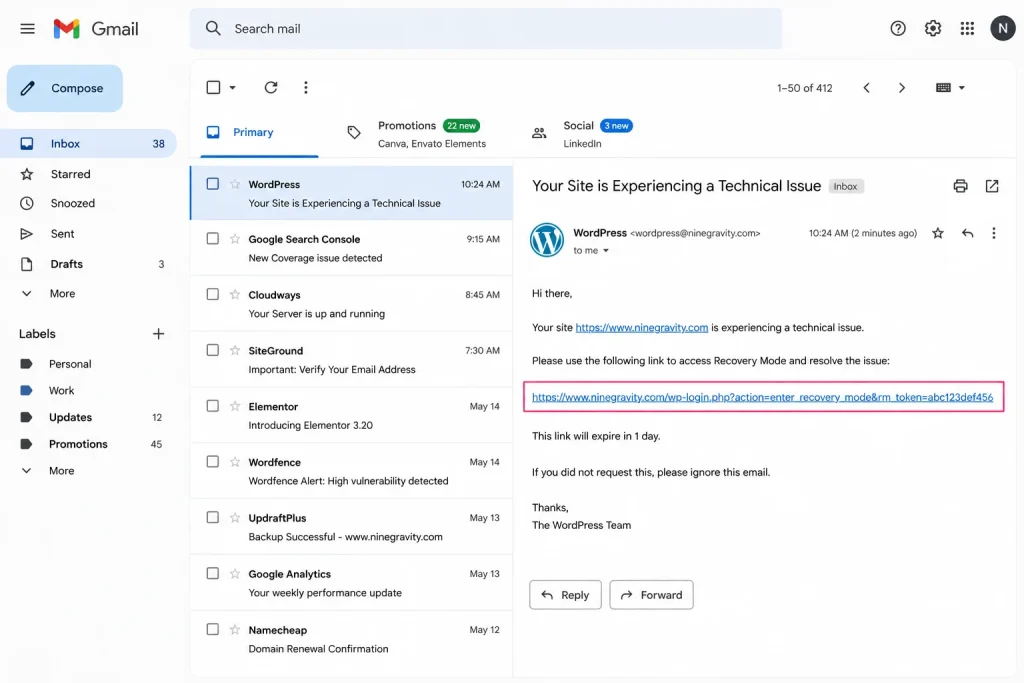
Here is how to use it:
- Open the email sent to your admin address, titled along the lines of “Your Site is Experiencing a Technical Issue.”
- Click the recovery link. It logs you into the dashboard in a paused, safe session where the faulty plugin or theme is held back.
- WordPress shows an error notice naming the exact plugin or theme that caused the crash. This is the culprit you were hunting for.
- Deactivate that plugin, or switch themes, then exit Recovery Mode.
If the email never arrives, check that your site can send mail and that the admin address is correct. When mail delivery is the problem, or you cannot wait, move to Step 4 and deactivate through your files instead. Recovery Mode and the older manual approach solve the same problem from two directions. Our comparison of Recovery Mode and Safe Mode explains when to reach for each.
Step 3: Clear the “Briefly Unavailable for Scheduled Maintenance” Message
If your site is stuck showing “Briefly unavailable for scheduled maintenance,” the fix takes about thirty seconds. During any update, WordPress writes a temporary file named .maintenance to your site root and shows that message to visitors. On a normal update, it deletes the file automatically when finished. If the update was interrupted, the file gets left behind and the site stays frozen in maintenance mode.
To fix it:
- Connect to your site with an FTP client or your host’s file manager.
- Open your site root, the folder that holds wp-config.php and wp-content.
- Turn on “show hidden files,” since .maintenance starts with a dot and is hidden by default.
- Delete the .maintenance file. Reload your site.
The site should return immediately. If the same update then fails again, the underlying conflict is still there, so continue to Step 4.
Step 4: Deactivate the Plugin or Theme That Broke
When you cannot reach the dashboard at all, deactivate the culprit through your files. WordPress reactivates a plugin only when its folder is where it expects, so renaming the folder switches the plugin off safely. Nothing is deleted, and your settings survive.
To find the culprit fast:
- Connect via FTP or file manager and open wp-content/plugins.
- If you know which plugin you just updated, rename its folder, for example, from plugin-name to plugin-name-off. This deactivates only that one.
- Reload your site. If it comes back, that plugin was the cause.
- If you are not sure which plugin did it, rename the whole plugins folder to plugins-off to disable them all at once, confirm the site loads, then rename it back and switch plugins off one at a time to find the offender.
If plugins are not the cause, do the same test with your theme: switch to a default theme like Twenty Twenty-Five by renaming your active theme’s folder in wp-content/themes, which forces WordPress onto a stock theme. Our guide to common WordPress mistakes covers the ones that most often surface during this kind of fix.
[My Experience] The folder-rename trick is the one recovery move worth memorizing, because it works when nothing else does: no dashboard, no Recovery Mode email, no support on shift. In recovery jobs, renaming the entire plugins folder to confirm the site loads, then bringing plugins back one by one, finds the guilty plugin in minutes almost every time. It feels crude, and it is the most reliable step in the whole process.
Step 5: Roll Back the Failed Update
Once the site is stable, decide whether to roll the update back or fix forward. If a plugin update caused the break and no patch is available yet, reverting to the previous version is the safe move. You have three options, from most to least automatic:
| Option | When to use it | How it works |
| WordPress core auto-rollback | The update failed partway through | WordPress keeps a temporary backup before updating and restores it automatically on failure, for manual updates since 6.3 and auto-updates since 6.6. Often, it has already run before you see the error. |
| WP Rollback plugin | The update succeeded, but broke the site | Reverts any WordPress.org-hosted plugin or theme to a previous version in a few clicks. Runs on 300,000+ sites. |
| Restore from backup | The update damaged content, or neither of the above options applies | Restores the full backup you took before updating, returning the whole site to its pre-update state in one action. |
Step 6: Rule Out an Outdated PHP Version
If the crash followed a major plugin or core update and the steps above did not hold, check your PHP version next. New releases often require a newer version of PHP than older ones, and a site left on an outdated version can cause a fatal error the moment it loads updated code. WordPress.org recommends PHP 8.3 or greater.
Check your version under Tools > Site Health > Info > Server in the dashboard, or in your hosting control panel. If you are on PHP 7.4 or lower, that is very likely the problem. Update PHP through your host’s panel, ideally on a staging copy first, since jumping PHP versions can itself surface plugin incompatibilities. Match your PHP version to what your plugins and theme support, and keep it current.
How to Stop This From Happening Again?
The reason WordPress recovers so gracefully now is a decade of safety features built for update failures. Knowing they exist and adding a few habits means the next update is far less likely to take your site down.
A Decade of Updating Safety Nets (Sources: WordPress.org, Make WordPress Core)
| Version | Year | Safety feature |
| 3.7 | 2013 | Background auto-updates |
| 5.2 | 2019 | Recovery Mode |
| 5.5 | 2020 | Plugin and theme auto-updates |
| 6.3 | 2023 | Manual-update rollback |
| 6.6 | 2024 | Auto-update rollback |
Build these four habits and update failures stop being emergencies:
- Back up before every update. A full backup of files and the database is your undo button. Follow the 3-2-1 rule: three copies, on two types of media, with one offsite.
- Test updates on staging first. Run the update on a copy of your site before touching the live one. Our guide to setting up a WordPress staging environment shows how.
- Update one thing at a time. Update a single plugin, check the site, then move to the next. If something breaks, you know exactly what caused it.
- Keep PHP and everything else current. Sites on supported PHP and recent plugin versions have fewer conflicts to begin with.
If keeping up with safe updates is not realistic to do yourself, our WordPress maintenance service handles updates on staging with backups, so a bad release never reaches your visitors.
Frequently Asked Questions
My WordPress site is down after an update. What do I do first?
Check your admin email for a Recovery Mode link, which WordPress sends automatically after a fatal error since version 5.2. If it is there, use it to log in and deactivate the plugin or theme WordPress names. If there is no email, connect by FTP and rename the folder of the plugin you last updated in wp-content/plugins to switch it off.
How do I fix “Briefly unavailable for scheduled maintenance”?
Delete the .maintenance file in your site root using FTP or your host’s file manager. WordPress creates it during updates and normally removes it, but an interrupted update leaves it behind and freezes the site. Once deleted, the site loads again immediately.
Can I undo a WordPress update?
Yes. WordPress core automatically rolls back a failed plugin or theme update since versions 6.3 and 6.6. For an update that succeeded but broke your site, the WP Rollback plugin reverts it to a previous version, or you restore the backup you took beforehand.
Will I lose my content if my site crashes after an update?
Rarely. A post-update crash is usually a code conflict that stops pages from rendering, not data loss. Your posts, pages, and settings sit in the database, untouched. Deactivating the culprit or rolling back the update brings the content straight back.
How do I stop updates from breaking my WordPress site?
Back up before every update, test updates on a staging copy first, update one plugin at a time so you can trace any break, and keep PHP at 8.3 or greater. These four habits turn most update failures into non-events.
Conclusion
A site that crashed after an update looks like a disaster and rarely is one. The cause is nearly always a plugin, theme, or PHP conflict, and WordPress now ships with the tools to undo it: Recovery Mode to get you back in, automatic rollback to reverse a failed update, and a clean folder-rename to disable the culprit when all else fails.
Work the steps in order. Name the symptom, get in through Recovery Mode or FTP, deactivate what broke, roll it back, and check PHP. Then close the door on a repeat with backups, staging, and one-at-a-time updates.
If your site keeps breaking on updates, or you would rather never see this screen again, our WordPress audit finds the fragile plugins and configuration behind repeat failures and tells you what to fix first.