Running ten, fifty, or two hundred websites from one WordPress install sounds efficient. Then a new editor needs access to three sites but not the other forty, a contractor leaves and nobody revokes their login, and a single shared admin password becomes the weak link for the whole network. WordPress Multisite User Management is where efficiency either pays off or quietly turns into a security problem.
This guide walks through eight practical strategies for managing users across a WordPress Multisite network: how to structure roles, automate onboarding, limit access, and lock down accounts. Whether you run sites for a university, an agency, or a group of brands, the approach below keeps a growing network organized and secure.
Key Takeaways
- WordPress runs 41.9% of all websites on the internet, so multisite skills scale across most of the web.
- A multisite network shares one user table across every site, which means access decisions affect the whole network, not just one page.
- Most account breaches start with stolen or reused credentials, so role discipline and two-factor authentication matter more than any single plugin.
- Plan your role hierarchy and onboarding before you scale. Cleaning up loose permissions later is far harder than setting them right from the start.
What Is WordPress Multisite?
WordPress Multisite is a feature of WordPress core that lets you run many separate websites from a single installation, sharing one codebase, one user table, and one network admin dashboard. That foundation matters because WordPress holds a 59.4% share of the entire CMS market, more than every other content system combined. Multisite is built into the platform that most of the managed web already runs on.
Each site in the network operates on its own, with its own content and settings, while sharing themes, plugins, and registered users behind the scenes. That shared layer is exactly what makes user management both powerful and risky.
Who actually uses it? Universities, media groups, and agencies lean on multisite the most. In a 2025 survey of higher education institutions, 40% named multisite support as a top reason for choosing WordPress, and 70% said the platform meets or exceeds their expectations.
Common setups include:
- Universities managing separate departments and campus sites
- Media companies running multiple publications
- Businesses operating regional or multi-language sites
- Agencies and developers managing client sites at scale
How Do You Set Up WordPress Multisite?
You enable Multisite by adding a single line to wp-config.php (define(‘WP_ALLOW_MULTISITE’, true);), then completing the Network Setup screen and updating your wp-config.php and .htaccess files with the rules WordPress generates. From that point on, a separate Network Admin dashboard appears for managing every site at once.
The shared plugin layer is the part worth thinking about early. The official WordPress.org directory offers more than 64,000 free plugins, and on a multisite network, you decide which ones are network-activated for every site versus enabled per site. That single choice shapes how much control individual site admins get, so treat it as a permissions decision, not just a feature toggle.
What Are the Pros and Cons of WordPress Multisite?
The trade-off is simple to state. Multisite gives you central control and shared resources, but it also concentrates risk, because one bad plugin or one compromised account can reach every site at once.
On the upside, the ecosystem keeps getting stronger. New WordPress plugin submissions nearly doubled in 2025 compared to the previous year (Make WordPress), which means more tools built for the kind of bulk user, role, and network tasks multisite admins handle daily.
Pros:
- One dashboard for managing many sites
- Shared users, themes, and plugins across the network
- Faster updates and centralized plugin management
- Easier scaling as the network grows
The downside is mostly about blast radius. A misconfigured plugin affects every site, not one. And the attack surface is real: 11,334 new vulnerabilities were discovered across the WordPress ecosystem in 2025, a 42% jump over the prior year.
Cons:
- A single bad plugin or theme can break or expose all sites
- User roles and access levels get complex fast
- Not every plugin is multisite-compatible
- Backups and security need network-wide planning
The good news is that careful user management neutralizes most of the people-related risk. That’s what the next sections cover.
8 Key WordPress Multisite User Management Strategies
Here’s the part that actually keeps a network safe. Strong user management on multisite comes down to clear roles, tight access, and good account hygiene. It matters because 91% of WordPress vulnerabilities disclosed in 2026 were found in plugins rather than core, and on a shared network, the users you grant plugin and dashboard access to are the people who can install, activate, or misuse those plugins. Govern the users and you shrink the risk.
1. Build a Centralized User Directory
Every user in a multisite network lives in one shared database table, so a single account can be granted access to one site, several sites, or all of them. That central directory is convenient, and it’s also why account hygiene is non-negotiable: the use of compromised credentials was the initial access vector in 22% of all breaches in the 2025 Verizon report. One reused password on one account can open a door to your whole network.
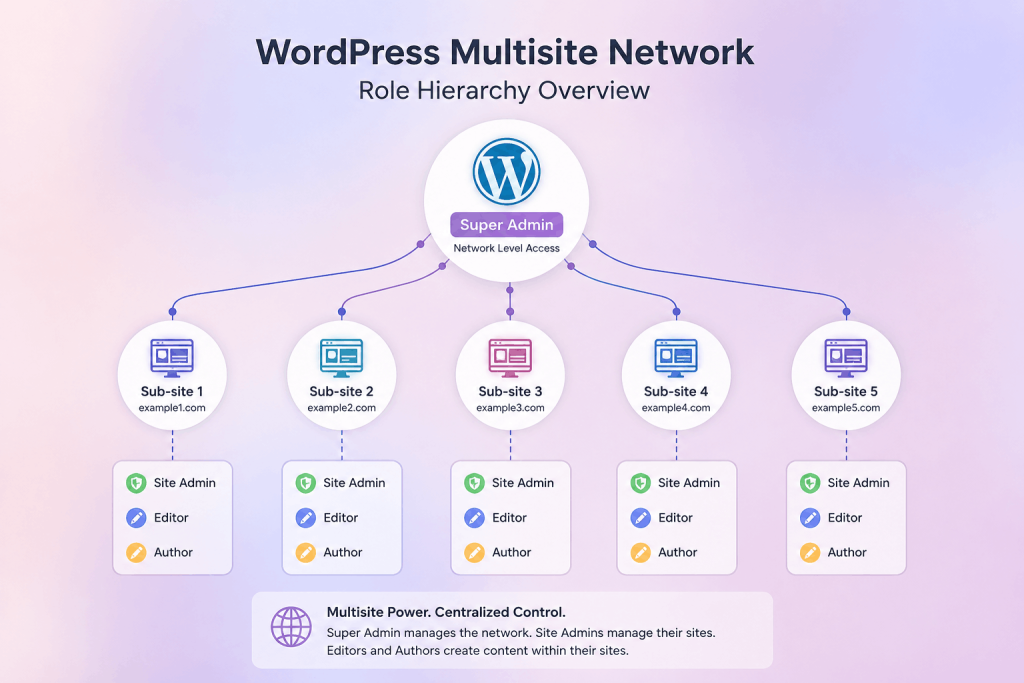
Define a clear hierarchy up front. The table below maps the standard WordPress roles to what each can do on a network.
| Role | Scope | Typical capabilities |
| Super Admin | Entire network | Create/delete sites, manage all users, network-activate plugins and themes |
| Administrator | A single site | Manage that site’s settings, users, plugins, and content |
| Editor | A single site | Publish and manage all posts, including those of other authors |
| Author | A single site | Write and publish their own posts |
| Contributor | A single site | Write drafts, but cannot publish |
Map real people to the lowest role that lets them do their job. A teacher posting updates to one department site does not need site-admin rights, and they rarely need Super Admin.
2. Decide Between Global and Site-Specific Roles
One of the first big decisions is whether a user gets the same role everywhere or different roles per site. WordPress supports site-specific roles, so a content manager can be an Editor on two sites and have no access at all to the rest. Default to site-specific. Give network-wide roles only to the small group that genuinely needs them, and reserve Super Admin for one or two trusted people.
3. Automate the User Onboarding Workflow
When you’re adding users one at a time through Network Admin, onboarding gets slow and inconsistent. Automate it instead:
- Use a registration plugin that’s confirmed multisite-compatible
- Send role-aware welcome emails so people know what they can access
- Auto-assign users to the right sites based on form input or role
Consistent onboarding isn’t just about speed. It’s how you make sure nobody quietly ends up with more access than their job requires.
4. Restrict Dashboard Access
Not everyone needs to see the WordPress back end. For non-technical contributors, hiding dashboard menus they don’t use reduces mistakes and shrinks what an attacker can reach if that account is ever compromised. This is the principle of least privilege, and it’s not optional: 57% of the WordPress vulnerabilities disclosed in H1 2025 required no authentication to exploit at all. Every capability you don’t grant is one fewer thing that can be abused.
5. Monitor Activity and Harden Logins
This is where most networks are quietly under attack already. Wordfence blocked more than 55 billion password attack attempts against WordPress sites, roughly 65 million every single day. On a multisite network, every one of those login forms is a shared front door.
Two habits handle most of it. First, run an activity-log plugin that records user actions across the network so you can spot anything strange and hold accounts accountable. Second, require multi-factor authentication. Microsoft reports that MFA blocks over 99.9% of automated account-compromise attacks. For larger networks, pair 2FA with single sign-on so access is centrally managed and instantly revocable when someone leaves.
6. Use Role Management Plugins for Custom Permissions
WordPress ships with five default roles, which rarely match a real org chart. Plugins like User Role Editor and Members let you define custom roles with precise capabilities, which is useful when, say, a “guest writer” should draft on one site but touch nothing else. Custom roles let you apply least privilege exactly instead of forcing people into roles that are too broad.
If you’re not familiar with how WordPress roles and capabilities work, see our Complete WordPress User Roles and Permissions Guide, which explains each default role and how permissions are assigned.
7. Sync or Bulk-Assign Users Across Sites
When the same person needs identical access on many sites, doing it by hand is slow and error-prone. Use a network plugin to bulk-add users to multiple sites or to sync a role across the network in one action. Just pair bulk actions with periodic reviews, because the same tool that grants access to twenty sites at once can over-grant it just as fast.
8. Run a Quarterly Access Review
The single most-skipped strategy is the cleanup. Set a recurring review, quarterly works for most networks, to remove dormant accounts, downgrade roles nobody uses anymore, and revoke access for people who’ve moved on. Have you ever found a still-active login for someone who left months ago? On a shared network, that one stale account is a liability for every site at once.
WordPress Multisite With Different Domains
Yes, a single multisite network can run sites on completely separate domains, not just subdomains or subfolders. With domain mapping, site1.com, site2.org, and site3.co.uk can each present as an independent website to visitors while sharing one backend, one user table, and one update process. Modern WordPress includes domain mapping in core, so each mapped site keeps its own identity while you manage users and roles for all of them from one place.
This is also a structural decision worth making early. The table below compares the three network types.
| Network type | Looks like | Best for |
| Subdirectories | site.com/blog1 | Single brand with sections; simplest setup |
| Subdomains | blog1.site.com | Distinct sub-brands under one parent domain |
| Different domains | brand1.com, brand2.org | Separate brands or clients needing unique domains |
What Should You Look for in Multisite Hosting?
Hosting choice sets the ceiling for how reliably your network performs, and the stakes are higher than they look. Unplanned downtime costs Global 2000 companies about $15,000 per minute and nearly $95 million annually per organization, a 50% increase over two years.
Look for hosting that offers:
- Wildcard subdomain or domain-alias support for mapping
- Automatic backups and a tested disaster-recovery path
- Resource headroom for traffic spikes on any site
- Staging environments so you can test changes safely
Managed WordPress hosts, such as Kinsta, WP Engine, SiteGround, Automattic, and Cloudways, are common choices for multisite setups, as they handle much of the scaling and security infrastructure for you.
How to Manage and Maintain Your Network
Once the network is live, management becomes routine maintenance. The day-to-day work falls into a few repeatable tasks:
- Add or remove users per site from Network Admin, customizing each person’s role, and bulk-add with a plugin when needs repeat.
- Sync roles across sites with a network plugin when someone should hold the same role everywhere.
- Keep plugins network-consistent by deciding deliberately what’s network-activated versus per-site.
Configure Your Network for Success
A little planning at setup saves a lot of cleanup later. Before you scale, decide how you’ll organize sites by purpose, whether you’ll use subdomains or separate domains, which themes are multisite-compatible, and which plugins should be network-enabled for consistency. Networks that plan this structure first tend to stay manageable as they grow. The ones that don’t usually hit a permissions mess somewhere around the twentieth site.
SEO Tools for WordPress Multisite
Running SEO across many sites is harder than running it for one, mostly because settings and reporting are scattered. A few tools are built for the job:
- Yoast SEO and Rank Math both offer network-level plus per-site configuration, and Rank Math adds role-based access that fits multisite permissions well.
- Google Site Kit connects Search Console and Analytics per site.
- SEMrush and Ahrefs cover external monitoring and link audits across the network.
One multisite-specific watch-out: make sure each site has its own sitemap, meta tags, and canonical URLs so the network doesn’t trip duplicate-content issues against itself.
Frequently Asked Questions
How is WordPress Multisite different from regular WordPress?
A standard WordPress install runs one website. Multisite runs many sites from a single installation, sharing one codebase, one user table, and one network dashboard. You manage updates, plugins, themes, and users for the whole network in one place instead of logging into each site separately.
Can one multisite network use different domains?
Yes. With domain mapping, each site in the network can have its own domain name, like brand1.com and brand2.org, while still sharing the same backend. Domain mapping is built into the modern WordPress core, so each mapped site looks fully independent to visitors.
How do I add a user to multiple sites at once?
Use a multisite user-management plugin to bulk-add users and assign consistent roles across selected sites in one action. For one-off additions, the Network Admin “Users” panel lets you add or assign users to individual sites manually and set each person’s role per site.
What are the best SEO plugins for multisite?
Yoast SEO, Rank Math, and Google Site Kit all support multisite well. Yoast and Rank Math handle network-level and per-site configuration, while Site Kit connects Search Console and Analytics for each site. Rank Math also adds role-based access that maps cleanly to multisite permissions.
How do I keep a multisite network secure?
Use site-specific roles, grant least privilege, require multi-factor authentication on every account, and run an activity-log plugin. Review access quarterly to remove stale accounts. Because all sites share one user table, one compromised login can affect the whole network, so account hygiene is the priority.
Conclusion
WordPress Multisite gives you real leverage over a group of sites, but that leverage cuts both ways: every user decision touches the entire network. Get the fundamentals right, a clear role hierarchy, automated onboarding, least-privilege access, activity monitoring, 2FA, and a growing network stays both manageable and secure.
If you’re a creator managing brand sites or a developer running client networks, plan your user architecture first, pick tools that fit multisite, and host somewhere built to scale. That groundwork is what separates a network that grows smoothly from one that becomes a maintenance burden.